

The task panel
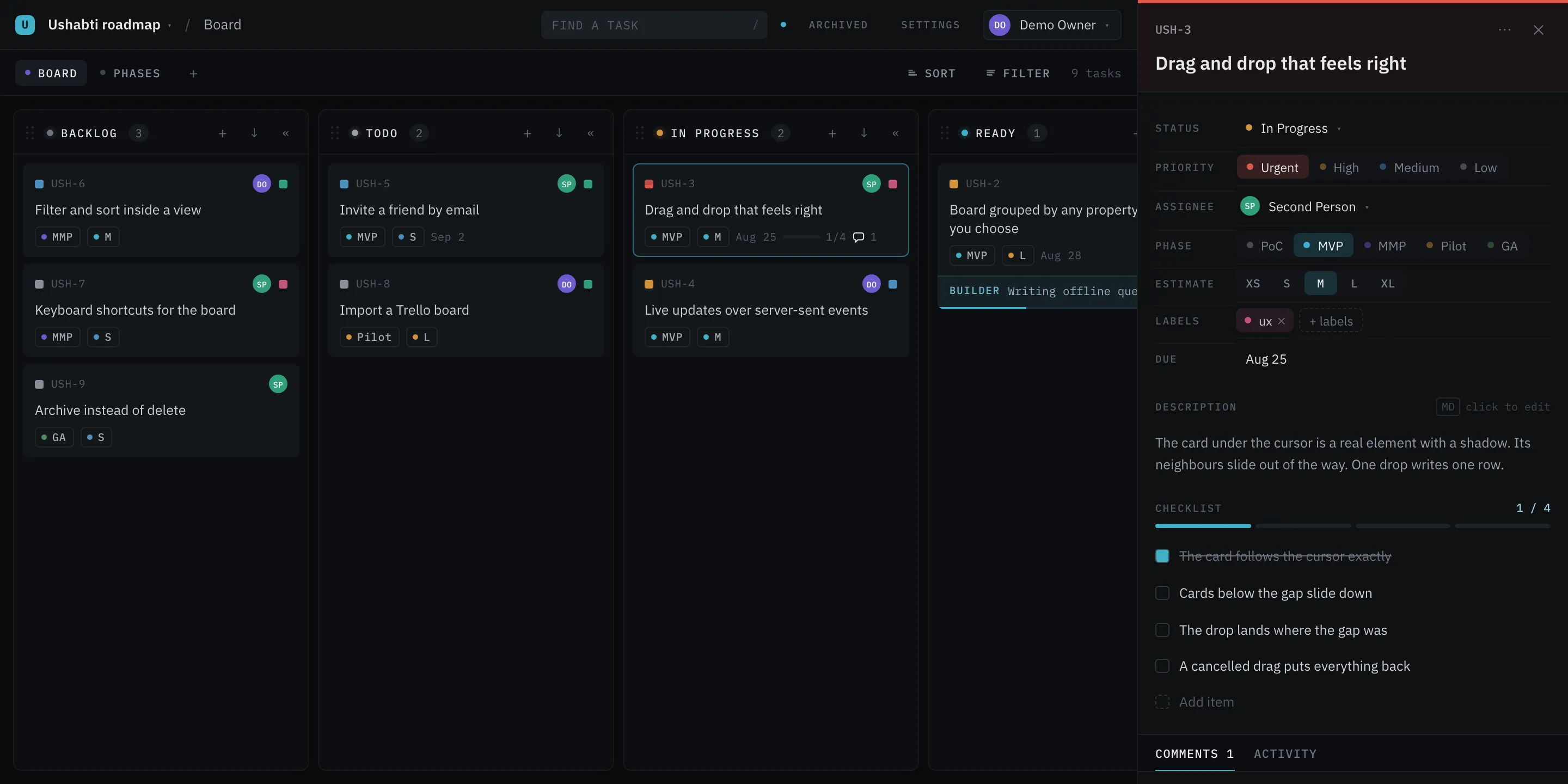
Click a card, or press Enter on it, and the panel slides in beside the board. Below 900 pixels wide it covers the board instead.
There are no dialogs. Every field edits where it sits and saves when you leave it.
The head
Section titled “The head”- The task key —
USH-14— is a button. Click it to copy a link straight to this card (…/p/{project}?task={id}) and a toast confirms. The link is built from the address in your browser, so behind a reverse proxy it points at the proxy. - The lead pill beside it shows the lead select property’s option, in its colour. A coloured band runs down the left edge of the panel in the same colour.
- Faces show who else has this task open, one face for each person, however many tabs they use. Point at a face, or reach it with Tab, to read the name. Your own face is never shown. A face comes within a second or two of somebody opening the task, and goes when they close it. If their tab dies without closing, it goes within a minute. A text save that did not see a change somebody else made is refused, and the field asks you in place what to keep (see When somebody else wrote it first). So a face here says: talk before you both edit. Agents do not show here; an agent at work shows on the Agent tab.
- ⋯ holds Copy link, Archive task and Delete task.
- ✕ closes it, and so does Escape when you are not typing.
Archived, and put back
Section titled “Archived, and put back”Archive task takes the card off every board and every list and keeps everything else: the values, the checklist, the comments, the history and the link. The panel stays open and grows one row at the top:
Archived 3 days ago · Put backPut back returns it to the rank it never lost, so it lands where it was.
Three ways lead back to one: the archive page, which lists them all with a Put back on each row; the search, which finds it and says archived on the row; and its link, which opens its panel with the board behind it not drawing the card.
A whole column is archived at once from its header — see Archiving a column.
A textarea that grows with the text. Enter saves and leaves the field, Escape reverts, clicking away saves. Blank reverts — a task with no title is not a thing.
Properties
Section titled “Properties”Every property of the project, in project order, as a grid of label and value. Each one is edited by the control its type deserves — a segmented row, a dropdown, an avatar menu, a switch, a date picker. Every change saves at once. An empty field says what a column and a filter say: No priority, Unassigned, No due date.
The select and multi-select menus carry a Find or add… box. The arrow keys move a highlight through the options that match, and Enter picks the highlighted one. When no option has exactly the name you typed, the last row offers to create it and apply it in one go. Nothing else makes an option, so Enter never adds one by mistake. The same menu sets a property on several selected cards.
Blocked by, and Blocks
Section titled “Blocked by, and Blocks”Between the properties and the description, and only when there are links: two short lists, what this task waits on and what waits on it. A row is a key, a title and a ✕. A blocker that is over is struck through — it is still in the list, it just holds nothing up.
The + beside a heading takes a key or a title. The way in on a task with no links yet is ⋯ → Blocked by…, because a heading over an empty list on every task in the project would cost more than the line it saved.
See Blocked by for the chain glyph on the card, for what makes a blocker over, and for the circle that is refused.
Description
Section titled “Description”Markdown, rendered. The header carries an MD badge and a hint that changes from click to edit to
⌘Enter saves — Ctrl on Windows and Linux, and the hint says which. Clicking away saves too; Escape reverts.
A task key of this project, such as USH-12, is a link in a description and in a comment. A click
opens that task in the panel; ⌘-click or a middle click opens its own address in a new
tab. Only a key that names a task on the board or in the archive becomes a link: an unknown key, a
key of another project, and a key inside code or inside a link stay as written. The saved text does
not change, so the API and agents read what was written.
Checklist
Section titled “Checklist”A count in the header (3 / 7) and a progress bar of one cell per item. Each row is a tick box, the
text, and a ✕.
- Click the text to edit it. Emptying the text deletes the item.
- Add item opens a box asking “What has to be true?”. Enter adds it and keeps the box open for the next one, because you are usually writing a list rather than one line.
- The counts feed straight back to the card.
Comments
Section titled “Comments”Avatar, name, relative time, body. You can delete your own; the project owner can delete anybody’s.
You can edit your own, and only your own. Edit opens the words as a box in place. It saves when you leave it and on ⌘Enter; Esc puts the old words back. The comment keeps its place in the thread, and edited appears beside its time — point at it or tab to it to see when. If the words changed in another tab while you typed, the box asks in place: Keep mine or Take theirs, as the description does. The feed says “Ada edited a comment”, and no old words are kept.
The composer takes ⌘Enter (CtrlEnter off a Mac) or the Comment button. Its placeholder is “Leave a note…” — or “Leave a note for the agent…” while an agent is working on the card, because that changes who you are talking to.
Typing @ opens a short list beside the box — under it, or above it when the box is near the
foot of the screen — of who you can mention: the project’s agents first,
with a word beside any that is listening right now, then the people. The letters after the @
narrow it, the arrow keys move, Enter or Tab picks and Esc closes
it. Picking writes the whole name — spaces and all, which is what wakes an agent watching for it.
The same list opens in the title and the description of the panel, and in the box that adds a task
to a column or a list.
An unsent note stays in your browser: close the tab, open the task again and the words are back. Two tabs on one task share that one draft — each keeps what it typed on screen, and the last to type is what a new tab gets back. It is the only composer that keeps a draft — the boxes that add a task or an option add what they hold as soon as you click away, so a tab closed on one loses the line. Sending the note, or emptying the box yourself, throws the draft away. A task you delete is off every board, so a task you put back again comes back without the note you never sent. Nothing about it reaches the server.
Activity
Section titled “Activity”The last sixty entries, newest first, written as sentences:
12m Ada set Priority to High34m Builder started a run1h Ada renamed it to "Write the offline queue tests"2h Ada created the taskValues, titles, descriptions, checklist items, comments, archiving — “Ada archived the task”, “Ada put the task back” — and every run event are recorded. An agent appears here exactly like a person, because to the activity log it is one.
The Agent tab
Section titled “The Agent tab”It appears when an agent starts a run on the task, and it stays after the run ends, to show the past runs: who worked, for how long, how it ended and what it was for. The tab’s dot wears the agent’s colour and pulses while the run is live.
A task opens on the Agent tab while an agent works on it — its run is running or paused — because the work is what you open it to see. It opens on Comments otherwise, and also while the run waits for an answer, because the question is a comment. The tab is picked when the task opens; pick another one and it stays, however often the agent reports.
Inside: the agent, its state and how long it has been going; the current step with a counter; a progress bar and the plan, each step ticked, current or waiting; and the run log with relative times.
Then the buttons — Pause, Stop and Take over — and a note that matters:
Your edits still save while the agent works. Take over ends the run and gives you the card.
See Pause, stop, take over for what each one actually does.
The save model, in one line
Section titled “The save model, in one line”Title, description, values, checklist text, view names, property names, option names, the project name and the project key all save when you leave the field. Comments and new checklist items take Enter or ⌘Enter. Nothing anywhere has a Save button.
When somebody else wrote it first
Section titled “When somebody else wrote it first”Two people can type in the same title, description or checklist item at once. The first one to leave the field saves. The second save is refused rather than written over the first, and the field turns into the question, in place: “This changed while you typed.” — with the name of whoever saved it, when the activity feed says. It shows the saved text above your words, and two buttons:
- Keep mine saves your words over theirs.
- Take theirs drops your words and shows what is saved.
A property value or a checklist tick never causes this, only a change to the same words. A tab closed in the middle of typing still sends its words, but if somebody saved first there is nobody left to ask, so the first save stays.
Who is editing
Section titled “Who is editing”When somebody else has the title, the description or one checklist item open for editing, one line of small words sits under that field: “Anna is editing the title”, or “Anna and Ben are editing the title”. On a checklist item it sits under that item only. It comes within a second or two of them putting the cursor there, and goes within a second or two of them leaving it — a blur, Escape, or closing the task.
The line blocks nothing. You can still type and save, and if you both save, the question above catches it. Your own other tabs never show it to you. Property values do not carry it: a value is one choice, and the last one wins.